Window Switcher
Window switching is built into Zenkai's core, not a plugin, so it works even with --no-plugins.
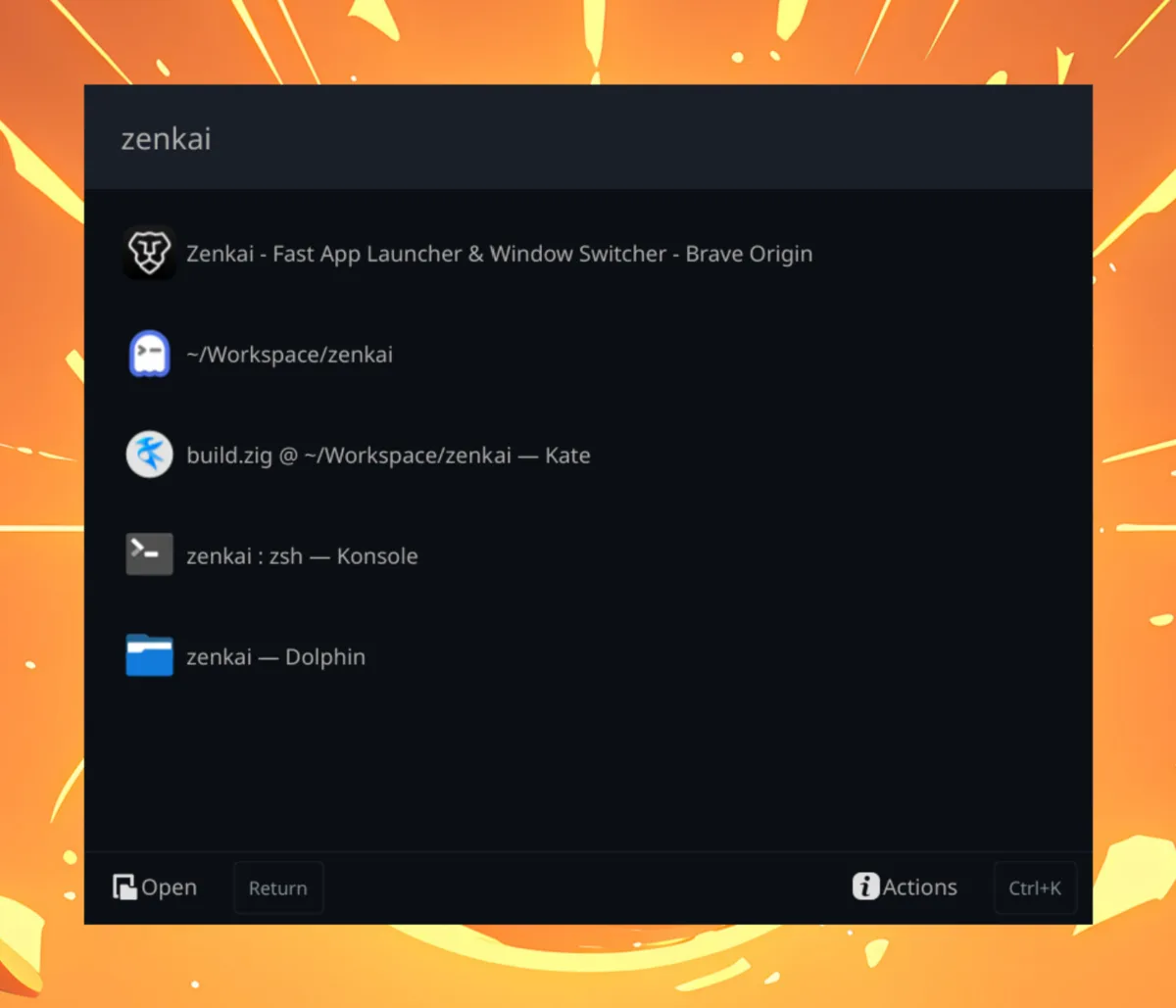
Using it
- Type
win:to list your open windows, each with its app's icon - Keep typing to filter by window title or app name
- Press Enter to focus the selected window (minimized windows are restored)
- Zenkai leaves its own window out of the list
To use Zenkai as a dedicated switcher, start it with --window-switcher and bind that to a hotkey. The windows are listed right away, typing filters them without the win: prefix, and app scanning is skipped:
zenkai --window-switcher
Turn window search off completely with --no-window-switcher.
The list is a snapshot taken when you type win:. Filtering searches that snapshot, so it doesn't keep asking your desktop for windows. Clear the search back to win: (or clear it entirely in --window-switcher mode) to refresh it. If focusing a window fails, Zenkai stays open and shows the error.
Arranging windows
Select a window and press Ctrl+K to arrange it:
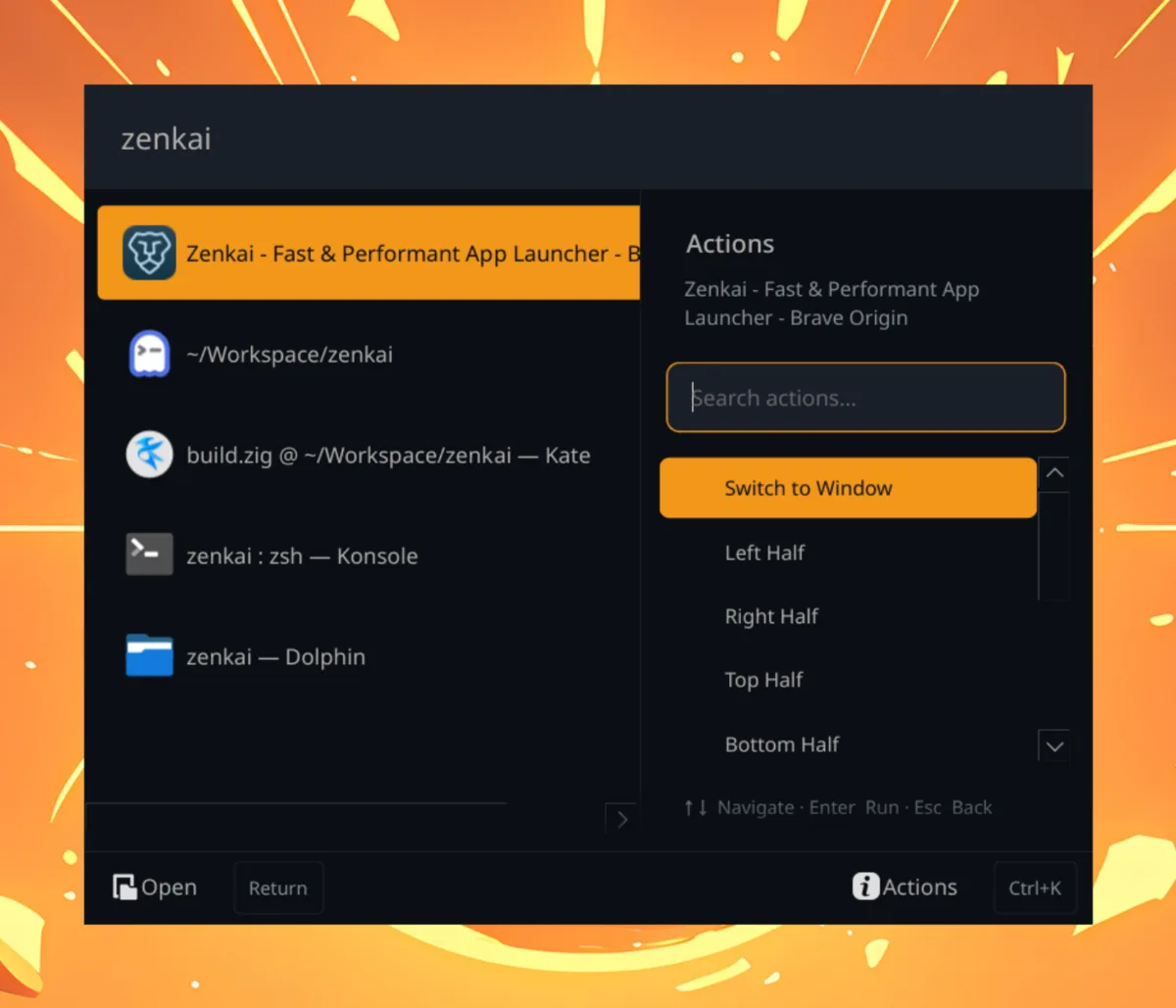
- Left Half, Right Half, Top Half, Bottom Half
- Maximize
- Center Window
- Move to Next Display
Layouts use each monitor's usable area, so they leave room for panels and docks, and they handle monitors with negative coordinates and desktop scaling. Center and Move to Next Display keep the window's size when it fits. Some apps enforce a minimum size.
Supported desktops
| Platform | How it works and what you need |
|---|---|
| Windows | Native Win32 calls. Nothing to install. |
| macOS | Native AppKit and Accessibility APIs. Give Zenkai Accessibility access in System Settings → Privacy & Security. |
| KDE Plasma 6 | Wayland and X11. Talks to KWin directly over D-Bus through kwinctl. Nothing to install. |
| Hyprland | Needs hyprctl in your PATH. |
| Sway | Needs swaymsg in your PATH. |
| X11 | Install wmctrl and xrandr. Your window manager must support EWMH. |
Other Wayland compositors, including GNOME, show an "unsupported session" message for now. Wayland doesn't let apps see other apps' windows, so each compositor needs its own integration.
Platform notes
- KDE Plasma: arranging a window first takes it out of maximized or fullscreen state.
- Hyprland and Sway: arranging a tiled window makes it floating. Leave Hyprland's fullscreen mode before arranging a window.
- macOS: Maximize fills the desktop instead of creating a new fullscreen Space.
Window icons
Window results show the owning app's icon:
- Windows: the executable's icon
- macOS: the app bundle's icon
- Linux: the
Iconfrom the app's .desktop entry, matched by app ID orStartupWMClass
If no icon can be found, the usual launcher icon is used.