Files & Previews
The bundled files plugin lets you browse folders and search filenames from the search bar, and the preview pane shows what's inside.
Browsing and searching
| Type | What happens |
|---|---|
/home/you/Workspace | Browse a folder on Linux |
~/Documents | Browse a folder in your home directory (Linux and macOS) |
C:\Users\you\Workspace or ~\Workspace | Browse a folder on Windows (forward slashes work too) |
~/Documents/rep | Filter a folder by a partial filename |
file: report | Search filenames under your search roots (your home folder by default) |
file: | Browse your home folder |
Enter opens folders inside Zenkai and files with their default app. The .. row goes up a level. Folders are listed first and load in pages of 128 entries. Browsing a path directly shows hidden files too.
Search scans as you go instead of building an index. When there's more to look through, pick Continue searching to scan further. Each step returns up to 100 matches. Search skips symlinked folders and common dependency and cache folders like node_modules.
File actions
Press Ctrl+K on a file or folder:
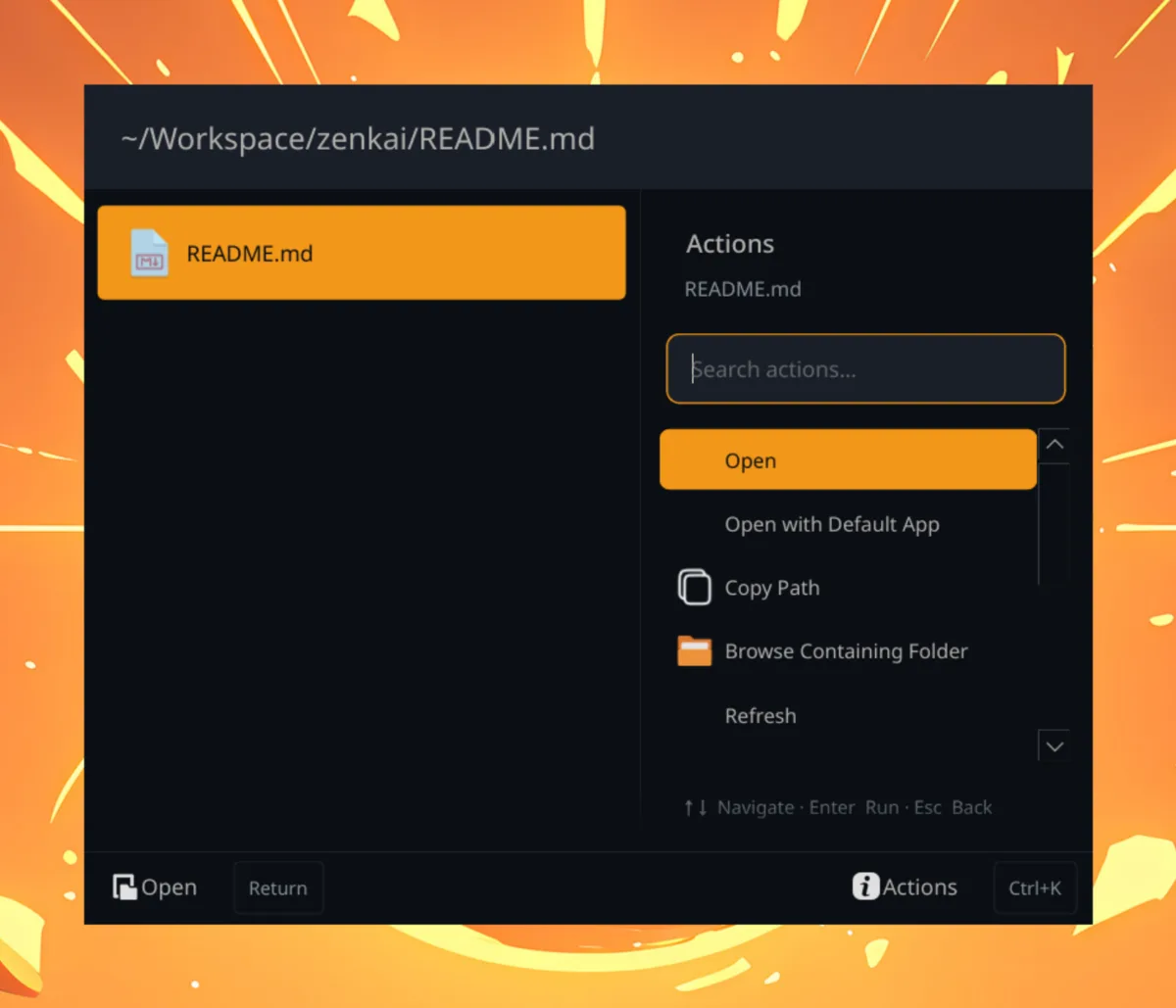
- Open with Default App / Open in File Manager
- Reveal in File Manager - selects the item in Explorer, Finder or your Linux file manager
- Copy Path
- New File… / New Folder… - create an empty file or folder next to (or inside) the selection
- Rename…
- Move to Trash… - asks first, with Cancel as the default. There's no permanent delete.
Create and rename never overwrite something that already exists. If something goes wrong, Zenkai stays open and shows the error in the results. Trashed items can be restored from your system's file manager.
Previews
Turn on the preview pane with --file-previews or file_previews = true in zenkai.conf. Press Ctrl+P (Command+P on macOS) at any time to toggle it for the current session.
The pane appears when a file or folder is selected and shows:
- Text and code up to 128 KiB, with syntax colors for Zig, Lua, C/C++, Rust, Go, JavaScript/TypeScript, Python, shell scripts, JSON and other common formats
- Images up to 16 MiB and 16 megapixels (animated images show their first frame)
- Folders - the first 64 entries
Binary files and unsupported formats show file details instead. HTML is shown as plain text: no scripts or external viewers ever run. The pane takes part of the window width, so try --width=900 for more room.
Configuration
Copy external/plugins/files/config.example.json to your config folder as files.json:
- Linux and macOS:
~/.config/zenkai/files.json - Windows:
%APPDATA%\zenkai\files.json
{
  "roots": ["~/Workspace", "~/Documents"],
  "exclude": [".git", "node_modules", ".cache", ".zig-cache", "zig-pkg", "Library", "AppData"],
  "include_hidden": false
}
Use forward slashes or escaped backslashes for Windows paths in JSON. Restart Zenkai after changing it. Typing a path directly works even outside your search roots.